MoneyWorks URL Scheme

The MoneyWorks URL scheme follows the pattern of the Common Internet Scheme syntax described in RFC 1738.

Where can I use it?

On both Mac OS X and Windows you can make a shortcut file that will connect you to a MoneyWorks server when you open it.

You can use a URL in place of a file path on the command line when starting MoneyWorks (usually using a shortcut) or as the parameter to the "open" command in a VB script.

On Mac and Windows you can type a moneyworks URL into your web browser, or use a bookmark to initiate a connect in MoneyWorks

You can create a standalone shortcut file containing the url that can be opened by double-clicking.

URL scheme

The syntax is as follows:

"moneyworks://" [ "ssl/" ] [ folderuser [ ":" folderpass ] "@" ] server [ ":" port ] [ "?doc=" [ docuser [ ":" docpass ] "@" ] documentname ]

folderuser is the folder name on the server (if the server requires folder login)

folderpass  is the folder password to use (if the server requires folder login)

server is the server IP address or domain name

port is the port to connect to (usually 6699)

ssl/ must be included if the server has TLS enabled.

documentname is the name of the document on a Datacentre to connect to. This must be URL-encoded: i.e. characters such as spaces and other non-alphanumerics must be %hex encoded. Document and folder names are matched case-sensitively. Make sure you have the correct case. If the document is in a subfolder then the partial path from the folder you logged into must also be supplied (with a url-encoded path separator).

moneyworks://ssl/root:rootpass@prefect.cognito.co.nz:6699?doc=rowan:pass1@MyFold%2fAcme%20Widgets%20Ltd.moneyworks

Connect to named document in the MyFold folder but logging into the server as root. Note that spaces and special characters in the document name/path must be escaped as hexadecimal according to standard URL rules. If the document is in a subfolder on the Datacentre, you must include the subfolder name and path separator appropriate to the platform the Datacentre is running on (/ for Mac, \ for Windows)

When MoneyWorks Datacentre is set up to require login itself (ASP user partitioning), you will need to pass the document username and password as part of the ?doc= part of the URL; the Datacentre login username and password come before the server in that case.

moneyworks://MyFold:MyPass@prefect.cognito.co.nz:6699?doc=rowan:pass1@Acme%20Widgets%20Ltd.moneyworks

Connect to the named document by logging into the folder MyFold using supplied folder user name and password. The document is specified starting at that folder, so the folder name is not included in the document path. No SSL.

moneyworks://MyFold@prefect.cognito.co.nz:6699?doc=Rowan@Acme%20Widgets%20Ltd.moneyworks

In this instance, no passwords are supplied. MoneyWorks will try to retrieve them from the Keychain/Vault.

moneyworks://MyFold:fred@prefect.cognito.co.nz:6699

Just connect to the server. A login dialog box will be presented to ask for credentials and choose a document.

MoneyWorks Now URL scheme

There is a special URL format for MoneWorks Now connections. These do not include any kind of server name, since the host for a document is managed by the MoneyWorks Now login system.

The syntax is as follows:

"moneyworks://now/" mwnowusername [ ":" password ] "/" [ companyName | hostFolder "/" documentName ]

The Company name, if supplied, is the name as it appears in the Company Details dialog in the document; URL-encoded.

The document pathname, if supplied, must include the "folder" or MoneyWorks Now hosting account name, followed by a slash, and then the document name.

Examples:

moneyworks://now/someuser@example.com/Example%20Company%20Ltd

No password supplied: It will be obtained from the Keychain/Vault on your computer, if present.

moneyworks://now/someuser@example.com:password/Example/Example%20Accounts.moneyworks

Supplying a password in the URL (not recommended — use your computer's Keychain/Vault).

Making a shortcut to a network document

Mac OS X

[v4.1.4 and later]

In Safari Bookmarks, click the + icon; Type the address for your shortcut in the form described above. Note that you can omit the password for the document if you have already stored the password in your Keychain.

Typing a MoneyWorks URL in Safari. The server address in this case is the localhost address, since this connection happens to rely on a previously established SSH tunnel to a remote server 1000 miles away.

You can now start a connection by clicking the bookmark. You can also drag this bookmark to the Finder to make a double-clickable shortcut document, however, Safari will create this document with a file extension of .inetloc, and this will not work due to a bug in the Mac OS X Finder (currently under investigation by Apple). You can make it work by simply renaming the file extension to .webloc. Double-click it to start a connection.

Windows

On Windows, you can use a regular shortcut (.LNK) file to pass the URL as the command line argument.

Make a New Shortcut by right clicking in Windows Exporer and choosing New -> Shortcut and typing the 2 arguments in quotes. The first argument is the path to the MoneyWorks .exe, the second is the URL to the network server.

E.g:

"C:Program FilesMoneyWorks GoldMoneyWorks Gold.exe" "moneyworks://Admin@Prefect.local:6699?doc=Play%20File"

Using URL from a script

Windows

You can pass the url as the argument to the COM/OLE open command, from Visual Basic etc.

Mac

Use open location "moneyworks://...."
Posted in CLI, Esoterica, Networking | Comments Off on MoneyWorks URL Scheme

Mutexes and Persistence

To make it easier to store persistent variables, there are some new functions to facilitate the safe updating of data in the User2 table.

GetMutex/ReleaseMutex can be used to create any number of named mutexes. GetMutex will fail if another client already holds the mutex.

GetMutex (name)

Attempts to obtain a named mutex from the server. If another user already has the named mutex, returns 0, else 1 if successful. Always successful on a single user system.

Use this when you need to ensure that some operation will only be executed by one client.

ReleaseMutex (name)

Releases the named mutex. If client logs out before releasing a mutex, the mutex is automatically released.

Once you have obtained a mutex, it is safe to get, update, and set your persistent data. GetPersistemt and SetPersistent operate specifically on the User2 table, loading an identified record into an associative list (whose keys are the user2 field names)

GetPersistent (devkey, key)

Loads values for a User2 record into an associative array. the array keys are "int1", "int2", "float1", "float2", "date1", "date2", "text1", "text2", "data".

SetPersistent (devkey, key, array)

Updates a user2 record with values from an associative array using the key values as for GetPersistent().

The Update_Currency_Rates sample script in Acme Widgets uses these to keep track of the last time currency rates were updated.

Posted in MWScript | Comments Off on Mutexes and Persistence

L.GetBalance() and L.GetMovement()

This is often forgotten, but since v5, there has been a loop-control-object version of GetBalance and GetMovement, which operate on an already-loaded ledger record in the special case of a report for-loop on the Ledger table.

Normally, GetBalance() and GetMovement() are fairly high cost functions, because they must first perform the supplied search to find and load the matching Ledger records.

The loop-object version (in the form L.GetBalance(period), with no search expression parameter, where L is a loop control variable for a Ledger loop) already has the relevant ledger record loaded, so is virtually zero-cost.

Posted in Reporting | Comments Off on L.GetBalance() and L.GetMovement()

Embedding a script in a report

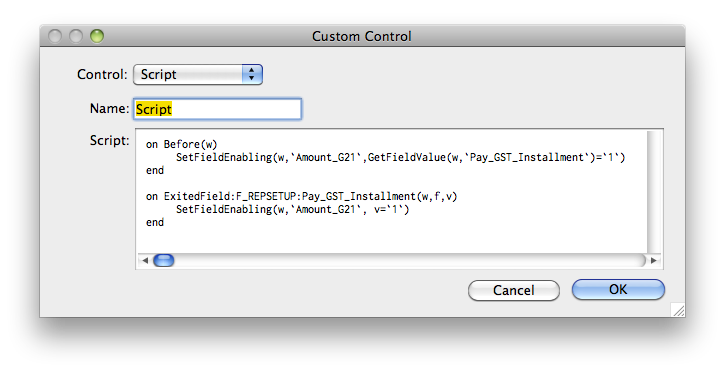
To facilitate scripting the custom report settings UI, and also to allow "library functions" that you can use in a report, there is a new custom control type: Script.

Screen shot 2013-04-11 at 12.11.06 PMScripts controls are loaded by the report settings dialog and can get messages associated with the dialog. The script is unloaded automatically when the report finishes.

Handlers declared public are available to expressions in the report using the scriptname:handlername syntax.

By the way, there is also now a Radio control. Contiguous radio controls are automatically grouped.

You can act on changes to checkboxes, popups and radios by implementing an ExitedField handler for the control (no, you cannot ValidateField them).

Note: There is no syntax checking in this dialog. To test your script, write it in the script editor, then copy and paste in here once it is working (in which case the Before should actually be Before:F_REPSETUP)

Posted in MWScript | Comments Off on Embedding a script in a report

User2

Version 7 contains a new script-accessible table for developers' use.

It behaves rather like the existing user file except for having a much larger primary key (27 chars) and also a numeric "developer key" intended to prevent data collisions between different applications. Cognito will allocate 16 bit key numbers to developers who request them (0-255 are reserved; don't use them). The devkey value of your records will be your key number * 65536 + your application number (allowing you to use the file for different purposes).

There are two int, two float, two date and two short text fields (19 chars), plus a longer text field (155 chars).

You can import into it using xml or by supplying all fields to the pseudo-map ":/user2", or, from a script using SetPersistent.

import "1 my_key2 1 2 3 4 1/1/13 21/2/68 xxx yyy my data" using map ":/USER2"

Note: All Devkey values in the range 0-65535 are for use by Cognito.

Field names are as in this XML export.


<user2>
    <sequencenumber>4</sequencenumber>
    <lastmodifiedtime>20110131170140</lastmodifiedtime>
    <devkey>1</devkey>
    <key>my_key2</key>
    <int1>1</int1>
    <int2>2</int2>
    <float1>3.000000</float1>
    <float2>4.000000</float2>
    <date1>20130101</date1>
    <date2>19680221</date2>
    <text1>xxx</text1>
    <text2>yyy</text2>
    <text>my data</text>
</user2>

Posted in Database | Comments Off on User2

Delegating Feature-Creep

This is a feature request that has been on the books for a while. Only requested by one user as far as I know.

0003133: User has requested an Item Picking List on the Order screens.
Description: He would like to be able to flag the Items to appear in the Order - from the Item List, and then add the Quantities.

This is the very thing that MWScript is for: functionality that is only wanted by a small percentage of users, which if included in the base product would only add complexity and concomitant fear and confusion for all other users.

It takes a few minutes to write a script to implement this functionality


constant meta = "Sample by Rowan Daniell. http://cognito.co.nz"

// Creates a new Sales Order populated with the highlighted products

property populate = 0

on MakeOrder public      // Invocation point
    let populate = 1    // set one-shot flag
    Navigator("neso")   // make new sales order
end

on Before:F_TRANS:SO(winref)
    if populate // only do our thing when one-shot is set
        let list = GetListHandle(winref"All Order Lines")
        let row = 0
        foreach prod in product CreateSelection("Product""**")
            if row > 0  // the first row is inserted automatically
                AddListLine(list)
            endif
            SetListField(listrow"Item"prod.Code)
            let row = row + 1
        endfor
        let populate = 0
    endif
end

on Load
    // install our command in the Command menu
    InstallMenuCommand("Pick Order for Selection""Order_From_Sel:MakeOrder")
end
Posted in MWScript | Comments Off on Delegating Feature-Creep

Privilege encoding

MoneyWorks 6 and earlier encodes privileges as a string where each privilege is represented by a character in the range 32-130. This is kind of wasteful and also unfortunate, because the last 3 codes are not valid utf-8. Making them valid utf-8 would break the privilege encoding.

In v7, privileges are automatically transmogrified to a bitmap that is stored as a 64 nybble hexadecimal string (the hex encoding is done longword-wise little-endian, which happens to be the MoneyWorks network protocol byte order).

<login>
   <lastmodifiedtime>20110131133003</lastmodifiedtime>
   <initials>rmd</initials>
   <name>Rowan</name>
   <privileges>
      ffffffefffffffffffffffff0000008000000000000000000000000000000000
   </privileges>
</login>

If you are testing privileges, the recommended way of doing so is using the Allowed() function, which takes a textual privilege name. If you're decoding the privileges field yourself, you will need to decode the hexadecimal string to test the bit you want.


on HexDecodeSample
    let bit = 0
    let hex = "ffffffefffffffffffffffff0000008000000000000000000000000000000000"
    foreach word in (0length(hex) / 8)
        let hexlong = ""
        foreach byte in (03)
            let hexlong = hexlong + mid(hexword * 8 + (4 - byte) * 2 - 12)
        endfor
        let w = val("#" + hexlong)
        let mask = #80000000
        foreach bitoff in (031)
            if TestFlags(wmask)
                syslog("bit " + bit + " set")
            else
                syslog("bit " + bit + " NOT set")
            endif
            let mask = mask / 2
            let bit = bit + 1
        endfor
    endfor
end
Posted in Database, Esoterica | Comments Off on Privilege encoding

Unicode

MoneyWorks 7 stores all text internally using the Unicode UTF-8 encoding.

This allows proper compatibility between Mac and Windows for Roman text outside the ASCII range (which previously was not translated between MacRoman and WinLatin), and also allows for input and output of non-Roman text (Chinese, Japanese, exotic symbols, Emoji etc).

The main things that will affect developers and advanced users will be import/export and some rare cases of calculations involving text.

Importing

XML is always UTF-8.

Plain text importing assumes that text files are UTF-8; if a non-UTF-8 character is found, the text will be reinterpreted using the default system codepage (usually MacRoman or WinLatin).

Calculations

In general, most things should just work as expected.

Char() was originally added to support hand-encoding of Code128 barcodes. However, as a generalised codepoint-to-character function it now takes a 32-bit Unicode code point and returns a UTF-8 string.

Code128() returns ASCII-compatible strings in the codepoint range 0-106. Since ASCII is forwards compatible with UTF-8, there is no issue.

The following string functions take their arguments/return values in unicode codepoint counts, not bytes:

Length(). Note that Length(Char(x)) is 1 for any codepoint x.

Left(), Mid(), Right()Pad()PositionInText().

These operate on unicode characters, regardless of the number of bytes used to encode them.

Cases that have encoding-dependencies:

HexEncode()—This exposes the UTF-8 encoding of text.

Since its output is a text string, it is an error for HexDecode() to produce invalid UTF-8. Invalid characters are transcoded as '?'.

Checksum() checksums the UTF-8 encoding of the text, so will differ from a checksum calculated by v6 or earlier if the text is not ASCII.

Slice() and Dice() delimiters are required to be ASCII (i.e. single-byte encoded)

Sort() is currently a bytewise sort (does not respect accents etc).

Posted in Database, Esoterica, MWScript, Reporting | Comments Off on Unicode

Connecting to Datacentre

Datacentre connections must be negotiated through the normal Datacentre port (6699).

Some earlier versions of MoneyWorks Datacentre* inadvertently allowed a client to directly connect to the database daemon port (e.g. 6674) without going through the Datacentre login process. i.e manual connection to port 6674 would be allowed in.

The principal problem with direct connections is that it created support problems when customers did it and then didn't understand why nothing was working after a server update (because no client update will be delivered to clients that are connecting incorrectly). Additionally it was a security hole for a partitioned (ASP mode) server as it would bypass folder-level security.

This situation seems to arise on Windows because many Windows admins routinely run a firewall on their server and block all network services by default and then do not allow all of the ports that Datacentre requires for proper operation. In particular UDP port 5353 is blocked which prevents the network browser from operating. Without network browsing, people resort to a manual connection and may choose the wrong port. When the direct connection to 6674 happens to work, the problem is not noticed until much later when everything stops working after an update. Similar issues arise when connecting through a NAT router from the public Internet.

For the record, Datacentre uses TCP ports 6699, 6700, 6710, and potentially all of 6674-6698, plus UDP port 5353. If a firewall is being used, all of these ports should be opened.

Also, if you have customers who suddenly can't connect after the update, check that they weren't connecting incorrectly.

*bug fixed in v6.1.2

Posted in Esoterica, Networking | Comments Off on Connecting to Datacentre

Crash recovery

After a crash or power loss, Moneyworks will normally recover unsaved changes from the session file the next time a document is opened. There is a confirmation UI if you open the file directly. If the file is opened in Datacentre, then this happens silently.

It is not always the case, but the session file format can sometimes change between versions (6.1.1-6.1.2 was one such occasion). In such a circumstance, the session file produced by the older version of the software cannot be used by the updated version.

Therefore, as a general rule, if you get a crash that is going to require session file recovery, do the recovery before updating the software to a newer version.

Posted in Database | Comments Off on Crash recovery